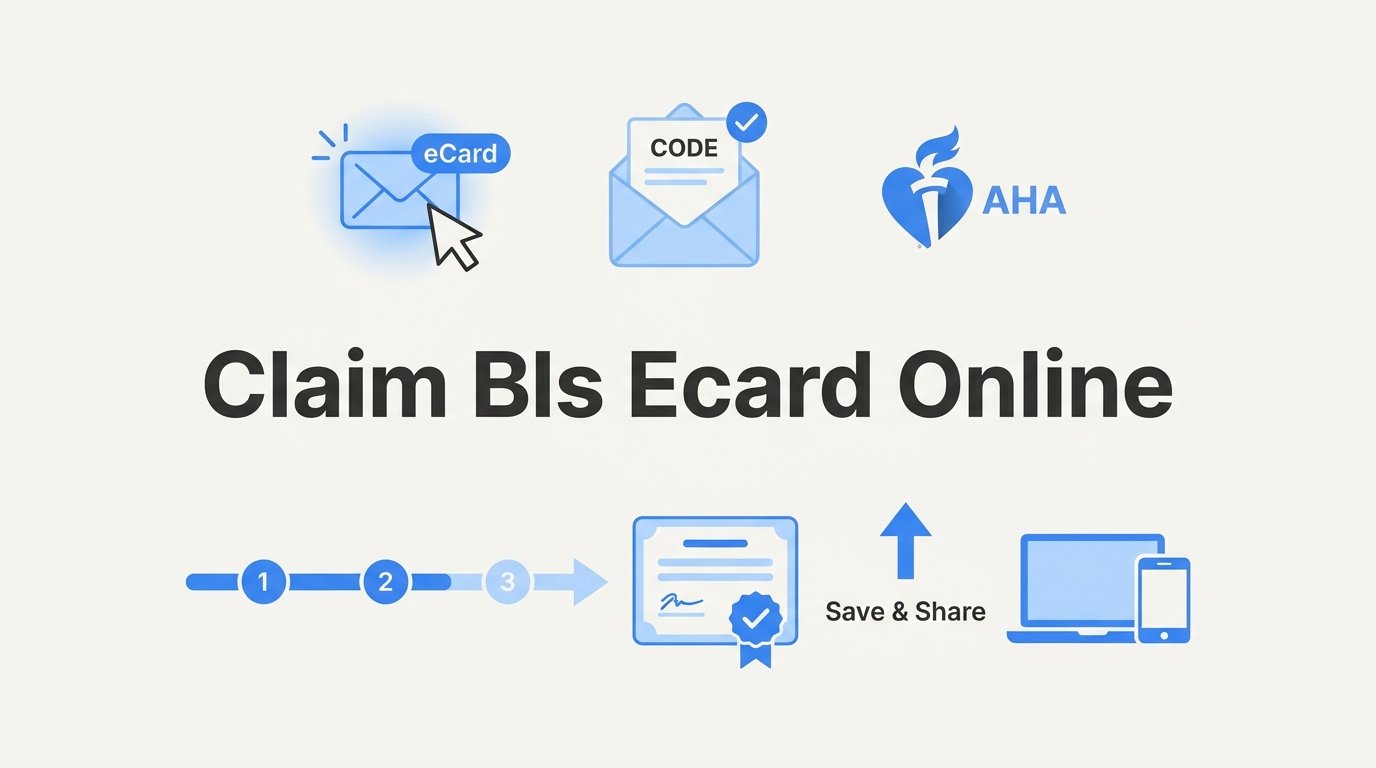
After you pass a BLS course, your American Heart Association (AHA) eCard is waiting to be claimed online. This guide shows you how to claim your BLS eCard online, from finding the claim email to saving the card and sending it to an employer or school. You need only the email address you gave at registration and a few minutes. An eCard is the AHA's digital certification card, issued through its eCards system. Claiming it means activating the card through a link tied to your course record. If your course included a separate skills session with a different issuing process, ask your instructor how your card will be delivered.
Step 1: Confirm Your Course Is Complete and Find the eCard Email
The eCard is not issued the moment class ends. Your instructor or training center, the AHA-aligned organization that issues your roster, must complete the course roster and submit your results first. Only then does the AHA system send your claim email. Timing varies by training center, so a short wait is normal.
Once your results are submitted, look for the email:
- Search your inbox for "eCards" or "American Heart Association."
- Check your spam, junk, and promotions folders. Automated messages often land there.
- Search every address you might have used, including old work or school accounts.
The claim email goes to the address you gave at registration. A typo or an outdated work address is the most common reason it never arrives. If you suspect that is your situation, you will want to flag it early rather than keep searching.
Verify the sender before clicking anything. As of November 2026, the message should come from an AHA system address, but senders can change, so judge by the domain rather than the display name alone.
If nothing arrives after a day or two, contact Best Emergency Services Training with your full name, course date, and the email address you believe you registered with. We can check the roster, confirm what was submitted, and correct the address if needed. Some training centers process rosters faster than others, so if you are on a tight deadline, tell us when you need the card.
Step 2: Open the Claim Link and Verify Your Identity
Click the claim link in the email. It should take you to the AHA eCards site. Before you type anything, look at the address bar and confirm the page sits on an official AHA domain. Lookalike sites exist, and a real claim process never asks for payment.
The page will ask for identifying details, typically your name and email. Enter them exactly as you gave them at registration. If you registered as "Katherine" and type "Kate," or if you use a different email than the one on the roster, the lookup can fail even though your card exists.
The link is tied to your specific course record. Do not forward the email to a coworker, a family member, or an HR contact, because anyone with the link could attempt to claim a card that belongs to you. If someone else needs proof of your certification, share the finished card instead, which Step 6 covers.
Mistake to avoid: ignoring the message because it looks like a promotion. Automated emails with a single button and a logo are easy to mistake for marketing, and some inboxes sort them into a promotions tab. The claim link may expire or need to be resent. The AHA sets the current expiration rules, so check with the AHA or with us rather than assuming you have unlimited time. If a link no longer works, ask Best Emergency Services Training to have a new one sent.
Step 3: Create or Log In to Your AHA Account
Next the site asks you to sign in or create an account. This is a real decision point, so answer one question first: have you ever held an AHA card before?
- Yes, for example from a prior ACLS, PALS, or earlier BLS course: log in with the same email so every card lives in one profile.
- No: create a new account.
If you are not sure, try the password recovery option with your usual email before creating anything new. If an account exists, you will get a reset message.
When you create an account, use a personal email you will keep long term. An employer address is convenient now, but it can disappear when you change jobs, and with it your access to the account and your renewal reminders. Healthcare workers move between systems often, and a personal address keeps your records portable.
Choose a password you can recover, and complete any security questions or verification prompts the site asks for. Store the credentials in a password manager or another secure place. You will return to this account at renewal time and whenever you add a course such as ACLS or PALS.
Mistake to avoid: creating a duplicate account under a second email. It happens easily, such as when a claim email goes to a work address and you sign up with a personal one. The result is cards split across profiles, which makes it harder to find your history and can complicate verification. If it already happened, contact us and we can help work out which record holds what.
Step 4: Complete the Claim and Review Your Card Details
Follow the on-screen prompts to finish the claim. Depending on the course, you may be asked to complete a short survey or confirm some details before the card is released. Survey requirements can change, so go by what the screen tells you as of November 2026 rather than what a coworker remembers from last time.
Once the card appears, do not rush past it. Check each of these:
- Your name: spelled exactly as it appears on your license, student record, or employer file.
- Course name: it should read BLS Provider if that is the course you took.
- Issue date: it should match the date you completed the class.
- Recommended renewal date: note it now.
AHA provider cards, BLS included, are generally valid for two years. That is the standard AHA validity period, but confirm the exact renewal date printed on your own card, since that is the date your employer will look at.
A name mismatch matters more than it seems. Credentialing offices and nursing programs often compare your card against other documents, and a missing middle name or a misspelling can trigger a rejection or a request for a corrected copy.
If any detail is wrong, do not use the card. Contact Best Emergency Services Training right away. The training center can request a correction, and fixing it before you send the card anywhere saves you an awkward back-and-forth with an employer.
Step 5: Download, Print, and Save Your eCard
Download the PDF as soon as the card is yours. Do not rely on being able to log in later when a manager asks for proof on a Monday morning. Save copies in at least two places, for example:
- Cloud storage, such as a folder named "Certifications."
- Your phone, in a files app or in an email you send to yourself.
If your employer or clinical site requires a physical copy, print a wallet-size version. Print at full quality so the text and code stay legible, and check the printout before you trim it.
Take a moment to find the eCard ID or QR code on the card. This is how others confirm that the card is authentic, and it is the most important element to keep intact whenever you share or print the file. Do not crop it, edit the PDF, or retype the details into a different document.
Tip: add a calendar reminder about 90 days before your expiration date. Ninety days gives you time to find a class that fits your schedule, which matters if your work depends on staying current. A lapsed card can mean being pulled from clinical shifts, and last-minute class availability is never guaranteed. Set a second reminder at 30 days in case the first one gets buried.
Step 6: Share and Verify Your Card With Employers or Schools
Send the PDF to whoever needs it: your employer, HR department, nursing program, or credentialing office. Some organizations prefer a link or the QR code instead of an attachment, so ask what their process is before you send. Many have an upload portal that rejects emailed files.
Employers and schools can verify an eCard through the AHA's eCard verification tool by entering the code on the card. As of November 2026, this is done on the AHA eCards site, but the exact steps and layout can change, so follow the instructions shown on the current verification page.
Mistake to avoid: sending a screenshot that cuts off the code. A cropped image makes verification difficult or impossible, and the reviewer may send it back, delaying your start date. Send the full PDF, or a screenshot only if the entire card, including the code, is visible.
If You Cannot Get In
If you cannot access your account or lost the claim email, work through these options:
- Use the AHA eCards lookup to search for your card with your details.
- Use password recovery with each email address you might have used.
- Contact Best Emergency Services Training with your name, course date, and email. We can help locate your record and, if needed, have the claim email resent.
Your Card Is Saved, Shared, and Set for Renewal
Once your card is saved in two places, sent to the people who need it, and tied to a calendar reminder, you are done. Your next task is renewal in about two years, or sooner if your role calls for advanced credentials such as ACLS or PALS.
Don't let certification deadlines stress you out. Get your AHA, ECSI or HSI-certified CPR training completed quickly with flexible scheduling that works around your life. Schedule your personalized training session today and join the thousands of individuals and businesses who trust B.E.S.T. for fast, convenient certification with expert instructors. When it is time to renew BLS or add ACLS or PALS, Best Emergency Services Training is ready to help.